
Generate a video from an idea
Describe the topic, audience, tone and intended format. InVideo can use that brief to create a starting script and assemble a video draft.
Turn a video idea into a first draft with AI-generated scripts, visuals, voiceovers, subtitles and music — then refine the result in an online editor.
Check current features, credits and plan limits before choosing a subscription.
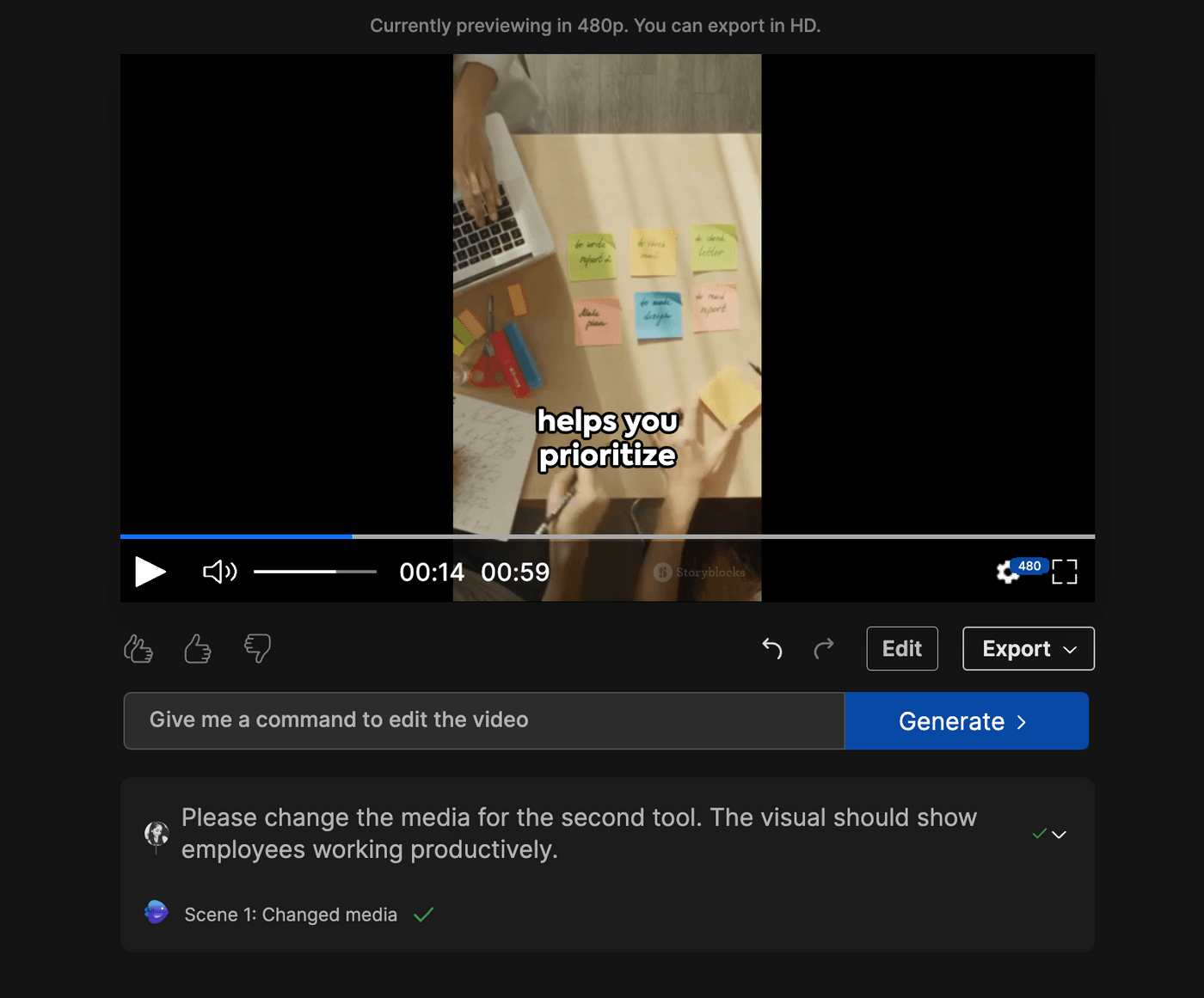
InVideo AI is built for people who want to create videos without assembling every scene from scratch. Describe the video you have in mind, generate a starting version, then review and edit it before publishing.
InVideo AI is a browser-based video creation platform that uses prompts to help turn ideas or written instructions into video projects. Its AI video generator can help draft a script, select or generate visuals, add voiceover, subtitles and music, and prepare a video for a chosen format or publishing platform.
The key benefit is workflow speed: you can move from a brief to an editable video draft without manually sourcing every asset at the beginning. It is not a guarantee that every generated scene will match your brief perfectly, so the review and editing stage remains important.
See the official InVideo AI video generator page for the current product overview.
Describe the topic, audience, tone and intended format. InVideo can use that brief to create a starting script and assemble a video draft.
Build scenes with AI-generated visuals or available media. Check each scene for relevance, consistency and usage suitability before publishing.
Add AI voiceovers, subtitles and music as part of the creation workflow. Review pronunciation, timing and caption accuracy.
Use simple text instructions to request changes such as replacing a scene, adjusting narration or adding an introduction.
Refine the generated draft in the editor by trimming, splitting, rearranging and adjusting clips on the timeline.
Plan videos for explainers, social content, marketing messages, tutorials and other common creator workflows.
Feature descriptions are based on InVideo’s published product information. Availability can vary by plan, model and account.
The prompt-first workflow is straightforward, although the quality of the first draft depends on how clearly you describe the result you want.
Explain the topic, target audience, video purpose, tone, approximate length and any must-use details.
Set the intended platform or aspect ratio and choose available narration or language options that suit your audience.
Let InVideo prepare the script, scenes and supporting media. Treat this as a starting point rather than a finished deliverable.
Check factual claims, scene relevance, pronunciation, captions, pacing, music and any visual rights or brand requirements.
InVideo’s pricing is structured around plan options and credits. The amount of credit used depends on the model and the type of AI work you choose, so two projects of different lengths or quality settings may have different costs.
| Pricing point | What to check |
|---|---|
| Plan options | Current public plans include Starter, Plus and Max, with different credit allowances and feature access. |
| Credits | AI video, image, voice and other generation tasks consume credits. Rates vary by model and settings. |
| Manual editing | InVideo’s help documentation says manual timeline editing does not consume AI credits. |
| Billing period | Compare monthly and annual billing, seat allowances, included credits and cancellation terms before subscribing. |
We are not listing a fixed price because plan promotions, billing periods and credit costs can change. Review the official InVideo pricing page for the latest amounts and plan details.
InVideo AI is best viewed as a production assistant that can create a useful first draft and speed up routine content. Final quality still depends on the brief, creative direction and editing decisions.
It may be a weaker fit when you need exact shot-by-shot direction, complex compositing or a finished film with no manual review.
The right tool depends on the kind of video you want to produce. Compare the workflow, output style, editing controls, language support and credit limits instead of choosing only by the number of advertised features.
| Tool | What to compare | Explore our review |
|---|---|---|
| InVideo AI | Prompt-to-video workflow, editing and generation credits | This review |
| Fliki | Voice-led video creation and narration workflows | Fliki review |
| Syllaby | Social content planning and video workflows | Syllaby review |
Browse our full collection of AI video tools to compare more options.
Yes. InVideo’s AI video generator lets you describe a video idea and uses the prompt to help prepare a script, visuals, voiceover, subtitles and music. Review the output before publishing.
Yes. Voiceovers are part of the platform’s AI video creation workflow. Available voices and options may vary, so check the current product interface and plan details.
Yes. InVideo describes text-prompt editing and a timeline editor for manual changes. You can review and refine the generated project rather than treating the first version as final.
InVideo’s help center describes free access with limited credits. The available quota and features may change, so check the current free-plan terms before relying on it for regular production.
Credits are used for AI tasks such as generating video, images, voice and music. The amount depends on the model and settings. InVideo’s help center says manual timeline editing does not use AI credits.
Its prompt-led workflow can make it easier to start creating videos, but beginners should still learn to write clear briefs and review scripts, visuals, captions and exports before publishing.
Explore InVideo AI, check the current plan options and see whether its prompt-based workflow fits the videos you want to create.
Affiliate Disclosure: PhoneLabs may earn a commission if you sign up or make a purchase through links on this page, at no additional cost to you. This may influence where links appear, but it does not change our goal of providing useful and balanced information.
Editorial note: This overview is based on publicly available InVideo product and support information checked on November 21, 2026. It is not a claim of hands-on performance testing. Features, credit costs and subscription terms can change.
Official references: AI Video Generator · Pricing · Plans and credits help guide.