
Using an AI chatbot without an internet connection is no longer limited to technical experiments. Local AI apps can run language models directly on a Windows PC or Android phone, giving users a way to chat, write, summarize, and work with AI even when an internet connection is unavailable.
The important part is understanding what “offline” actually means. In most cases, you first need an internet connection to download the application and the model. After the model is stored locally on your device, supported apps can run the AI locally without needing an active connection.
In this guide, we look at some of the most useful offline AI chatbot options for Windows and Android, what they are best suited for, the hardware they need, and what you should know before choosing one.
Looking for More AI Tools?
Explore more AI software and practical tools on PhoneLabs, including writing, productivity, research, and content creation solutions.
Quick answer: Windows users can choose from several local AI applications, while Android users can run smaller language models directly on supported phones. The best option depends on your operating system, available memory, storage, and the type of AI tasks you want to perform.
Best Offline AI Chatbots at a Glance
| Tool | Platform | Offline Use | Best For |
|---|---|---|---|
| LM Studio | Windows | Yes, with local models | Desktop beginners and general users |
| GPT4All | Windows | Yes, with local models | Simple local AI and documents |
| Jan | Windows | Yes, with local models | Local AI and advanced users |
| Ollama | Windows | Yes, for local models | Developers and technical users |
| PocketPal AI | Android | Yes, after model download | Mobile local AI |
| Layla | Android | Yes | Personal AI on mobile |
Offline support, model availability, hardware requirements, and app features can change over time.
What Is an Offline AI Chatbot?
An offline AI chatbot is an AI application that can run a language model locally on your device instead of sending every conversation to a remote server.
The main difference is where the model runs. With cloud AI, the model is hosted remotely and your device communicates with the service through the internet. With local AI, the model is stored on your computer or phone and the processing happens on the device.
This can be useful when you are traveling, working in a location with poor connectivity, or simply want an AI workflow that does not depend on a constant connection.
Cloud AI vs Offline AI
| Cloud AI | Offline AI |
|---|---|
| Usually requires internet access | Can work without an active connection after setup |
| Model runs on remote infrastructure | Model runs on your device |
| Less dependent on local hardware | Depends on your device hardware |
| Online features may provide current information | No live web information by default |
| Usually easier to use larger hosted models | Model size depends on your hardware |
Do Offline AI Chatbots Need Internet?
This is one of the most common questions about local AI.
The answer depends on which part of the process you mean. You may need the internet to download the application, download an AI model, install updates, or access optional online features.
Once a supported local model is already installed, the actual conversation can often run without an internet connection.
That distinction matters because “offline” does not necessarily mean the entire application never connects to the internet.
Best Offline AI Chatbots for Windows
1. LM Studio
LM Studio is designed to make running local language models easier through a desktop interface. It is a useful option for people who want to experiment with local AI without building a complicated command-line setup.
You can download a compatible model, load it into the application, and use it locally. This makes it suitable for everyday chat, writing assistance, brainstorming, and other text-based tasks.
2. GPT4All
GPT4All focuses on local AI and is designed for users who want to run language models on their own hardware. It also provides workflows for working with local documents.
This makes it useful when you want to combine chatbot-style conversations with information stored on your own computer.
3. Jan
Jan is another local AI desktop application designed to run models on your own hardware. It gives users a graphical interface while also offering more advanced options for people who want to work with local AI programmatically.
This makes it a useful choice for users who want something between a simple chatbot interface and a more technical local AI environment.
4. Ollama
Ollama is widely used for running open language models locally. It is particularly relevant to developers and technical users who want to connect local models with other software.
Its Windows application makes local model access more convenient, while its developer-oriented workflow makes it useful beyond simple chatbot conversations.
Best Offline AI Chatbots for Android
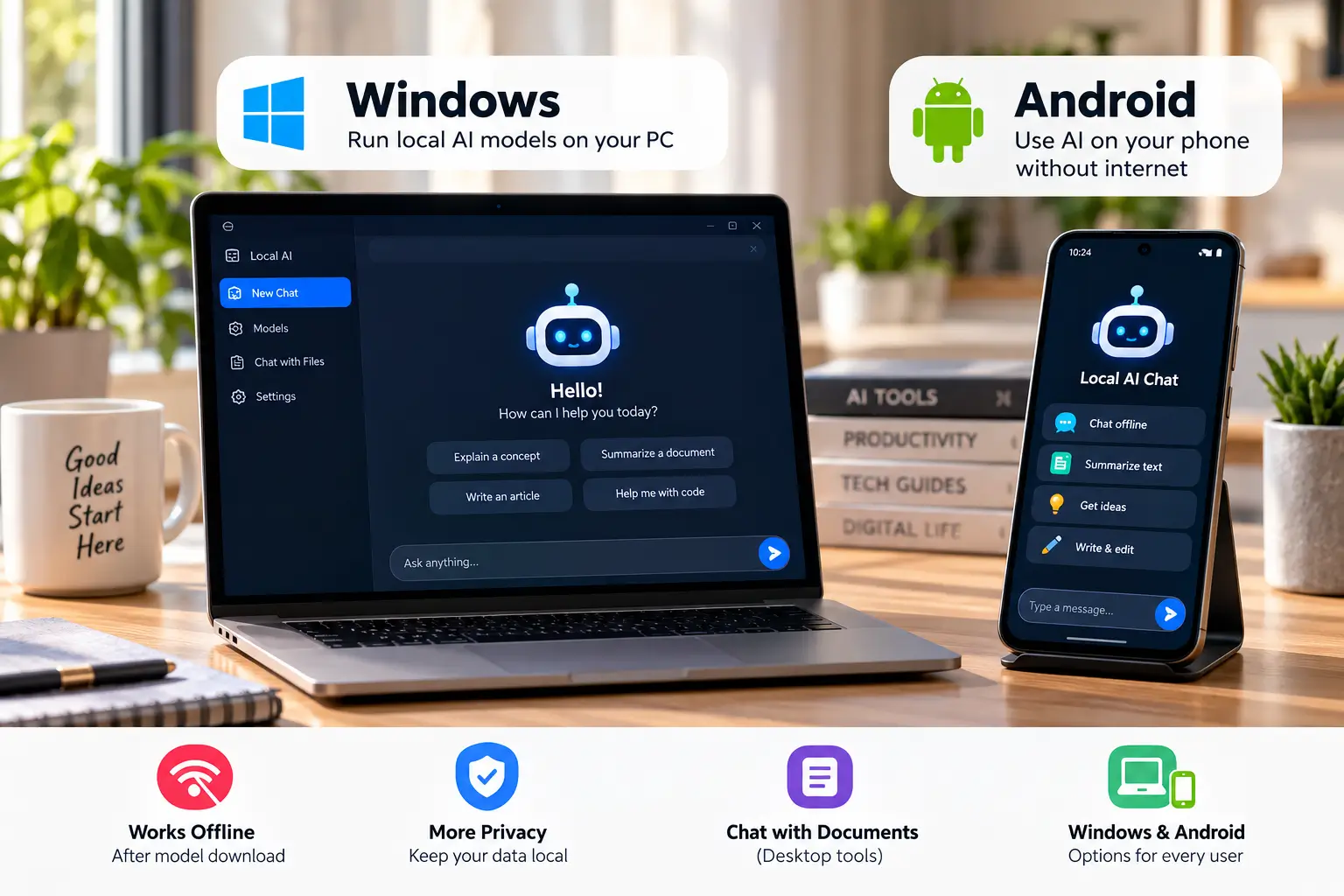
1. PocketPal AI
PocketPal AI is designed specifically around running language models on mobile devices. Instead of depending on a cloud chatbot, the app can load supported models directly on the phone.
This makes it one of the more relevant options for someone searching for an offline AI chatbot for Android.
The main consideration is hardware. Larger models require more memory and storage, so choosing a model that fits your phone is important.
2. Layla
Layla is another mobile AI option built around on-device conversations. The app is designed to run AI directly on supported phones without requiring an active internet connection for its core local experience.
As with other mobile AI tools, device compatibility matters because the available performance depends on the hardware in the phone.
Android vs Windows for Offline AI
Both platforms can run local AI, but the experience is different.
| Android | Windows |
|---|---|
| More portable | More hardware flexibility |
| More limited by RAM and battery | More options for RAM and GPU upgrades |
| Smaller models may be more practical | Can support larger models on suitable hardware |
| Useful while traveling | Better for longer and more demanding workflows |
What Hardware Do You Need for Offline AI?
RAM
RAM is one of the most important factors when running local language models. The larger the model, the more memory it may require.
If your device has limited RAM, a smaller or more aggressively compressed model may be a better choice than trying to run a large model that causes slowdowns.
Storage
Local models can take significant storage space. Keep enough free space available for the model, application files, updates, and your normal device usage.
CPU and GPU
Local AI performance is strongly influenced by the processor and, on supported systems, the GPU. Hardware acceleration can make a noticeable difference when an application and model support it.
Model Size
You may see local models described by parameter counts such as 3B, 7B, 8B, or larger. A higher parameter count can mean a more demanding model, although model architecture and quantization also matter.
How to Use an AI Chatbot Without Internet
The basic setup is usually straightforward.
- Install a local AI application.
- Choose a model that fits your hardware.
- Download the model while you have internet access.
- Load the model into the application.
- Start a local conversation.
- Disconnect from the internet and test the chatbot.
The exact process depends on the application, but the important step is having the model stored locally before going offline.
What Can You Do With an Offline AI Chatbot?
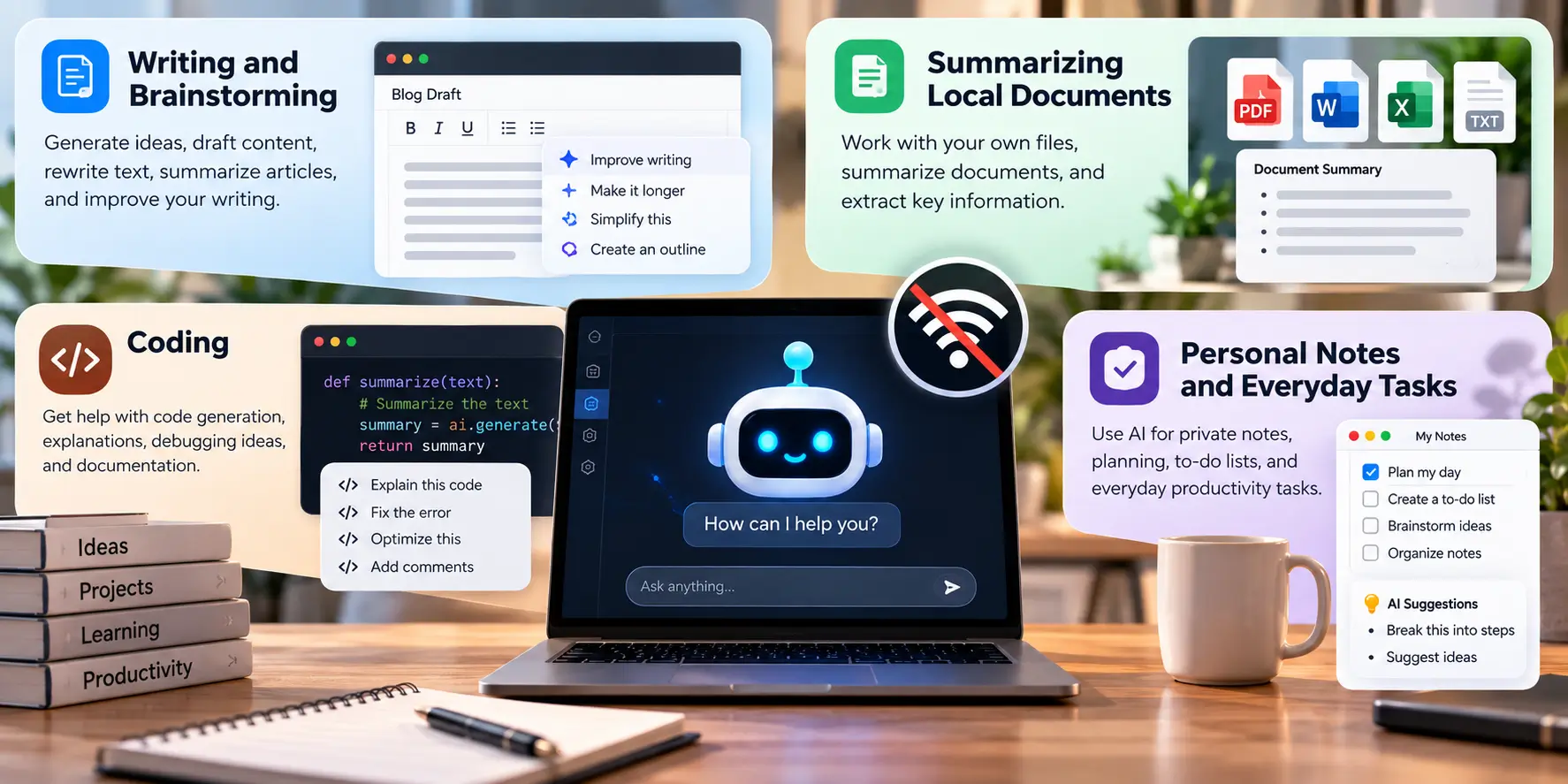
Writing and Brainstorming
A local chatbot can help with idea generation, drafting, rewriting, summarizing, and other text-based tasks.
For a broader writing workflow, you can also read our guide on how to use AI for writing, which covers prompting, outlining, drafting, editing, and fact-checking.
Summarizing Local Documents
Some desktop applications can work with documents stored on your computer. This can be useful when you want local assistance with notes, reports, or other files.
Coding
Local AI models can also assist with code generation, explanations, debugging ideas, and documentation. The results depend heavily on the model and the hardware running it.
Personal Notes and Everyday Tasks
Offline AI can be useful for private notes, brainstorming, planning, and other tasks that do not require live web information.
Are Offline AI Chatbots Private?
Running a model locally can reduce the need to send prompts and files to a remote AI provider, but it is important not to assume that every feature of every app is completely offline.
An application may still connect to the internet for model downloads, updates, account features, analytics, or optional cloud services.
For that reason, check the specific application’s current privacy information and settings before using it with sensitive information.
Advantages and Limitations of Offline AI
Advantages
- Can work without an active internet connection
- Local processing can reduce cloud dependence
- Useful in places with limited connectivity
- Greater control over downloaded models
- Can support local document workflows
Limitations
- Requires compatible hardware
- Local models can use substantial storage
- Larger models may need more RAM
- Performance varies by device
- No live web information by default
When an Online AI Writing Tool Makes More Sense
Offline AI is useful when local processing and independence from a constant internet connection are important. But it is not always the most convenient option if your main goal is creating polished written content.
If you mainly need help with blog posts, rewriting, marketing copy, and other writing tasks, a dedicated online AI writing platform can offer a more focused workflow.
For example, Rytr is designed around AI-assisted writing rather than running a language model locally on your device.
Need an AI Writing Tool?
If your main goal is creating and improving written content rather than running AI locally, you can try Rytr for AI-assisted writing workflows.
Affiliate link. PhoneLabs may earn a commission at no additional cost to you.
Offline AI Chatbot vs ChatGPT
| Offline AI | Cloud AI |
|---|---|
| Runs locally on your device | Runs on remote infrastructure |
| Can work offline after setup | Usually requires internet |
| Depends on local hardware | Less dependent on local hardware |
| No live web information by default | Online capabilities may be available |
| You choose local models | The provider controls hosted models |
Which Offline AI Chatbot Should You Choose?
For Windows Beginners
Look for a desktop application with a graphical interface and simple model management. LM Studio and GPT4All are useful examples to consider.
For Developers and Technical Users
Jan and Ollama are worth considering when you want a more flexible local AI workflow or want to connect models with other applications.
For Android Users
PocketPal AI and Layla are designed around running AI directly on mobile devices. Before downloading a model, make sure your phone has enough memory and storage.
For Local Documents
Desktop applications can be more practical when your workflow depends on working with larger documents and files stored on your computer.
Frequently Asked Questions
Is there any AI chatbot that works offline?
Yes. Several applications can run language models locally after the required models have been downloaded. Options vary by platform and hardware.
What is the best offline AI chatbot?
There is no single option for every user. The right choice depends on your device, available memory, storage, model preferences, and the tasks you want to perform.
Can I use an AI chatbot without internet on Android?
Yes. Some Android applications can run supported language models directly on the device without an active internet connection after setup.
What is the best offline AI chatbot for Windows?
Windows users can compare local AI applications such as LM Studio, GPT4All, Jan, and Ollama based on ease of use, model support, and hardware requirements.
Do offline AI chatbots need internet?
They may need internet for downloading the app, downloading models, or receiving updates. Supported local models can then run without an active connection.
Can offline AI chatbots read my files?
Some desktop AI applications support local document workflows. The exact file types and capabilities depend on the application you choose.
How much RAM do I need for an offline AI chatbot?
There is no single requirement. RAM needs depend on the model, quantization, application, and device. Smaller models are generally easier to run on devices with limited memory.
Are offline AI chatbots private?
Local processing can reduce the need to send conversations to remote servers, but privacy depends on the specific application and which online features you enable.
Final Thoughts
Offline AI chatbots give Windows and Android users another way to work with artificial intelligence without depending on a constant internet connection.
Windows users have several local AI options, while Android users can also run smaller models directly on supported phones. The most important factors are your device hardware, the model you choose, and the type of work you want the chatbot to handle.
If you are building a broader AI workflow, you can explore the AI Productivity and Research Tools section on PhoneLabs for more software related to productivity, research, and everyday AI work.
For more AI software guides and practical technology content, visit PhoneLabs.