
Making a video with AI does not have to start with a camera or a microphone. You can write the script, create the narration, build the visuals, and edit everything into a finished video using AI-assisted tools.
The important part is the workflow. A good result usually comes from combining the right steps rather than asking one tool to do everything.
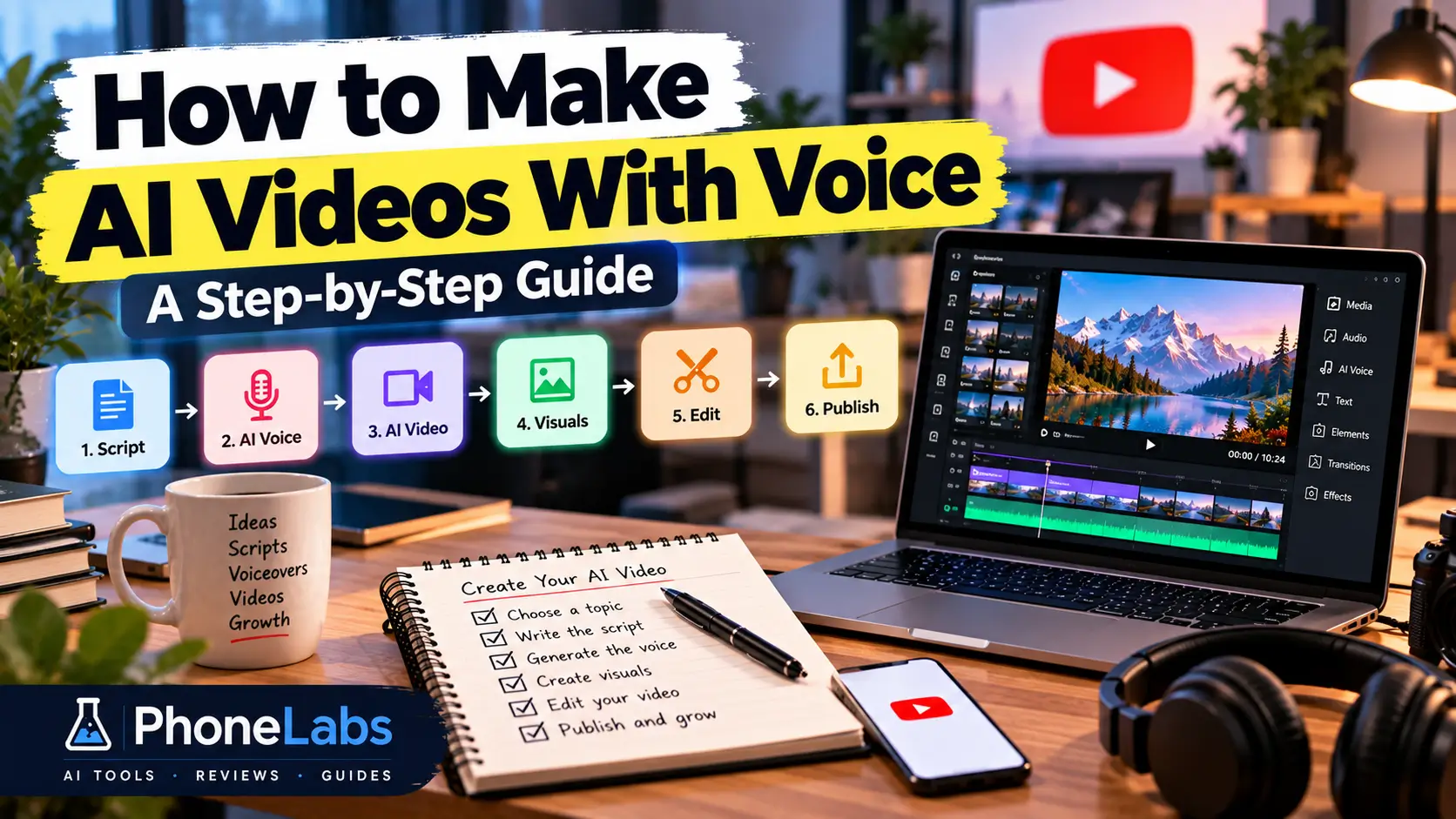
Quick answer: The basic process is simple: choose a topic, write the script, create the voiceover, prepare the visuals, sync everything in an editor, and review the final video before publishing.
What Do You Need to Make an AI Video With Voice?
Before choosing any software, it helps to understand the pieces that make up a finished video.
| Part | Purpose |
|---|---|
| Script | Provides the structure and words for the video |
| AI Voice | Turns the script into narration |
| Visuals | Shows what the narration is talking about |
| Editor | Combines voice, visuals, captions, and music |
| Thumbnail & Title | Packages the video for viewers |
You can use one platform for several of these steps, or use separate tools when you want more control.
How to Make an AI Video With Voice
Step 1: Choose a Clear Topic
Start with one specific idea instead of a broad subject.
For example, instead of making a video about “AI,” choose something narrower such as “how AI voice generators work” or “how to create product videos with AI.”
A focused topic makes the script easier to write and gives you a clearer idea of which visuals the video will need.
Step 2: Write the Script
The script controls almost everything that comes after it, so do not rush this step.
A simple structure works well for many videos:
Hook → Problem or Question → Main Information → Examples → Takeaway → CTA
Write in a way that sounds natural when spoken. Long sentences, unnecessary filler, and repetitive phrases become much more noticeable once the text is converted into a voiceover.
For a practical guide to working with AI during the writing process, see how to use AI for writing.
Step 3: Choose the Voice
Once the script is ready, choose the voice that fits the content.
Think about:
- Language and accent
- Voice style
- Speaking speed
- Pronunciation
- Energy and tone
- Consistency across videos
A voice can be technically realistic and still sound wrong for the content. A tutorial may need a calm and clear delivery, while short-form entertainment content may benefit from a faster pace.
Step 4: Generate the AI Voiceover
Paste the final script into your voice tool and listen to the complete narration before building the video around it.
Check for mispronounced names, unnatural pauses, awkward emphasis, and words that sound different from how you intended them.
It is much easier to fix the narration before the editing stage than after the entire video has been assembled.
Step 5: Create the Visuals
There is no single right way to create visuals for an AI video.
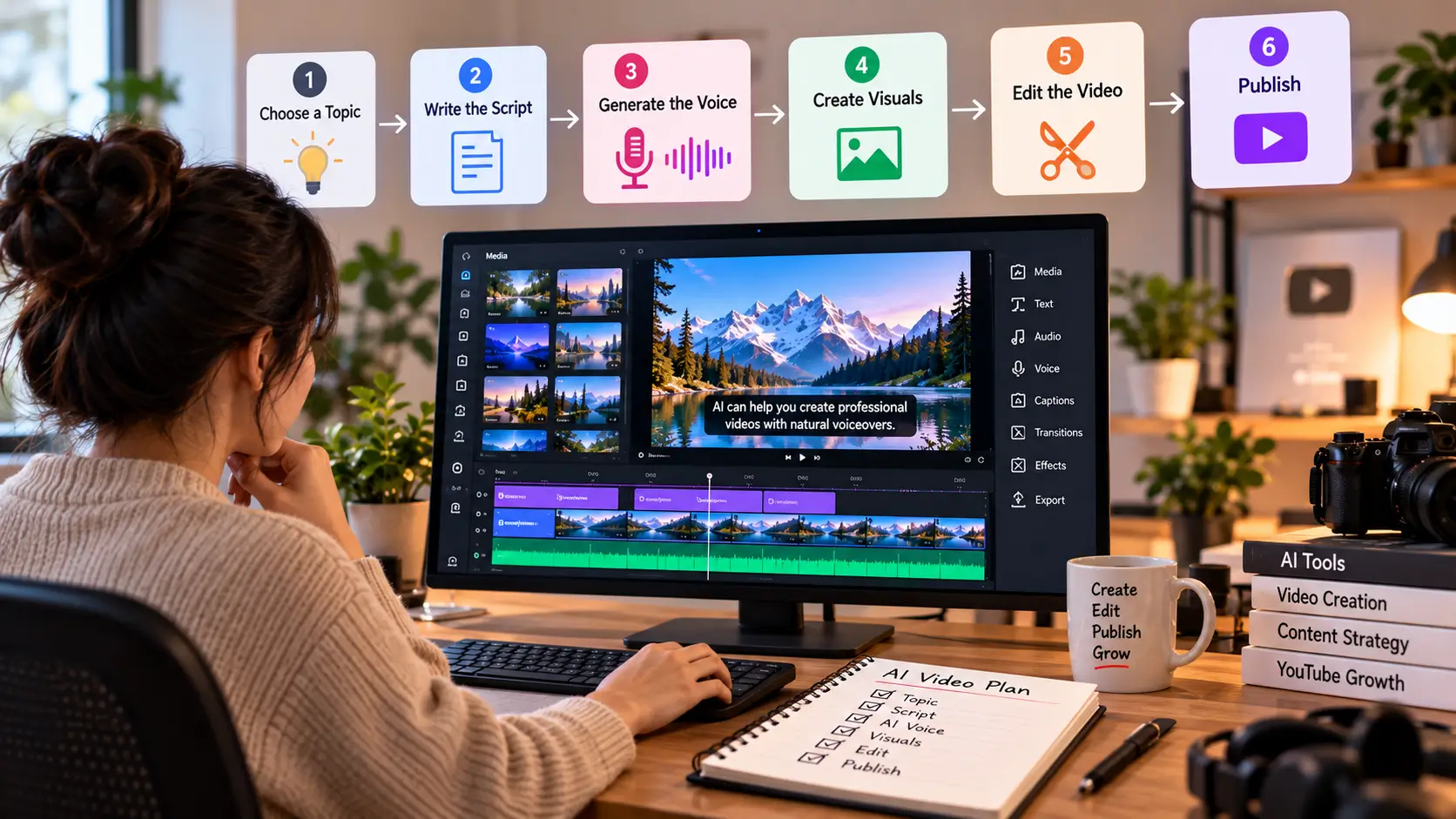
You can use:
- AI-generated video scenes
- AI-generated images
- Stock footage
- Screen recordings
- Product screenshots
- Animations and graphics
Choose the format that supports the message. A software tutorial may need screen recordings, while a storytelling video may work better with images, animation, and supporting footage.
For more ways to approach AI video creation, see our guide to AI video tools.
Step 6: Match the Visuals to the Voice
This is where a basic AI-generated video can start to feel either useful or generic.
Use the narration as your timeline. When the topic changes, the visual should change with it. When the narrator explains a process, show the process. When a point needs emphasis, use a visual that adds information instead of simply filling the screen.
Do not force the script to match random clips just because those clips are available.
Step 7: Add Captions and Music
Captions can improve accessibility and make the video easier to follow, especially on mobile devices.
Background music should support the voice rather than compete with it. Keep the narration clear and lower the music enough that every sentence remains easy to understand.
Step 8: Edit the Video
At this stage, review the entire video from beginning to end.
- Remove unnecessary pauses.
- Cut repeated information.
- Fix awkward scene changes.
- Adjust visual timing to the narration.
- Check caption timing.
- Balance voice, music, and sound effects.
The goal is not to add effects everywhere. The goal is to keep the video clear and easy to follow.
Step 9: Create the Thumbnail and Title
A good video still needs strong packaging.
Your title should tell viewers what they are going to get. The thumbnail should reinforce that idea without making a promise the video does not deliver.
Step 10: Export and Publish
Before exporting, check the resolution, aspect ratio, audio level, captions, and final file.
For YouTube, decide whether you are publishing a standard long-form video or a Short because the format, pacing, and aspect ratio can be different.
3 Ways to Make AI Videos With Voice
Method 1: Use an All-in-One AI Video Platform
This is usually the easiest option for beginners. Several steps can happen in the same workflow, which reduces the amount of software you need to learn.
The trade-off is control. A platform that handles everything for you may give you fewer options when you want to change the voice, visuals, timing, or editing style.
Want to Turn a Script Into a Video Faster?
Fliki is one option to test if you want a workflow that combines AI video creation and voiceover in one place.
Method 2: Use Separate AI Voice and Video Tools
This approach gives you more control. You can choose one tool for the voice, another for visuals, and a separate editor for the final video.
A typical workflow looks like this:
Script → AI Voice → Visuals → Editing → Export
This setup takes more work, but it can be a better fit when you want to control individual parts of the video.
Method 3: Turn Existing Content Into a Video
You do not always need to start from a blank page. An existing article, guide, presentation, or piece of research can become the foundation for a video.
The process can be:
Existing Content → Short Script → Voiceover → Visuals → Editing
This can be useful when you already have useful written content and want to repurpose it for another channel.
How to Make an AI Video With Your Own Voice
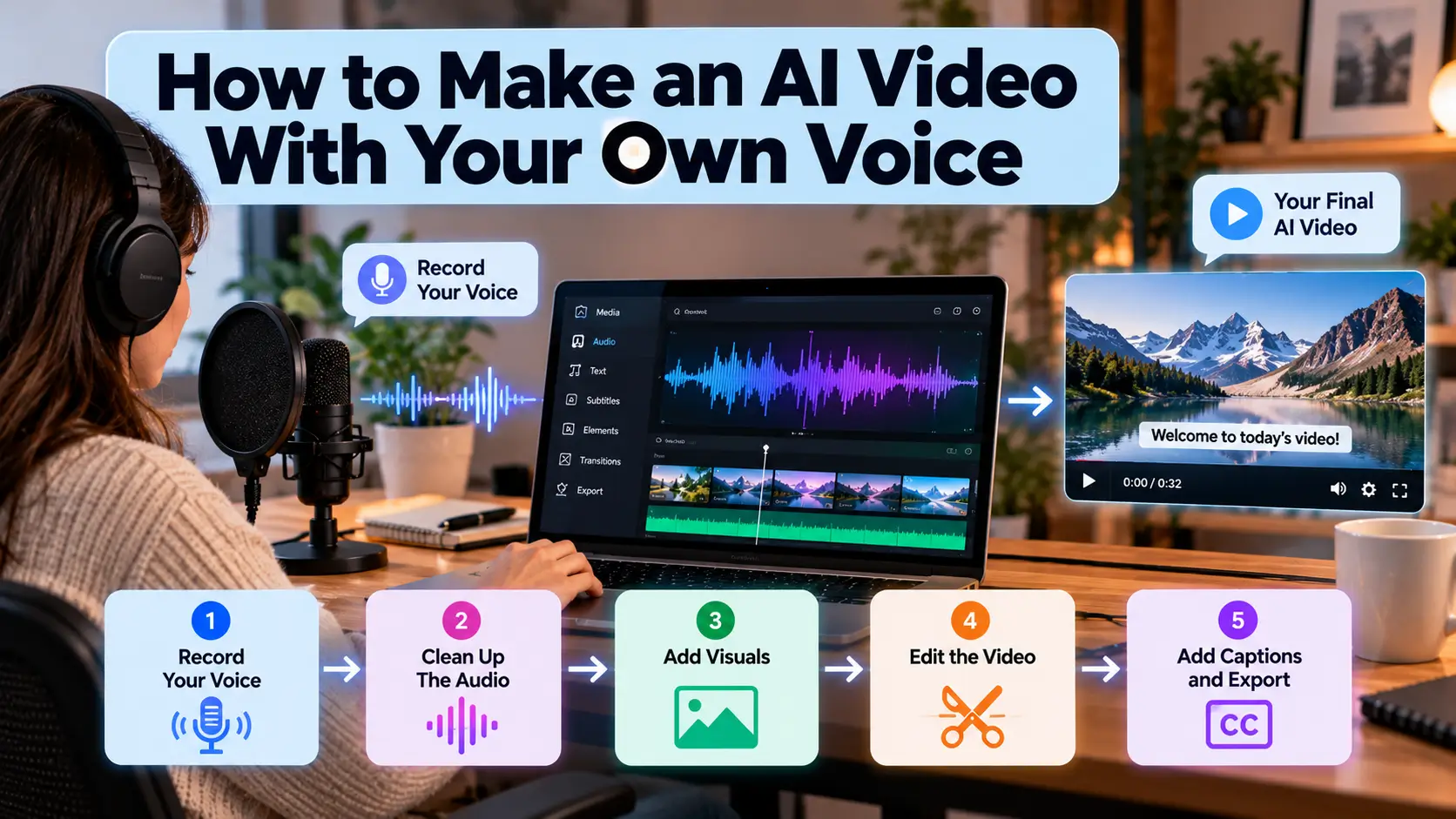
AI voice is not the only option. You can also record your own narration and use AI for the other parts of production.
Record Your Own Voice
This gives you complete control over delivery, pronunciation, and personality. It can also help make a channel feel more personal.
Clone Your Voice With AI
Some tools can generate narration based on a voice model. If you use this approach, check the provider’s policies, consent requirements, and allowed uses before creating or publishing cloned voice content.
When Your Own Voice May Be Better
Your real voice may be preferable when the content depends on personality, trust, storytelling, or a strong connection with the audience.
How to Choose the Right AI Voice
Do not choose a voice from a short sample alone. Listen to a longer section of your actual script.
Naturalness
The voice should sound comfortable over an entire video, not only in a short demonstration.
Pronunciation
Test names, technical terms, locations, brands, and words that are commonly pronounced differently.
Pacing
The voice should give important information enough space without sounding slow or rushed.
Consistency
If you are building a channel, the voice should sound consistent from video to video.
How to Make AI Videos With Voice for Different Platforms
YouTube Long-Form Videos
Long-form videos give you more room for explanations, examples, demonstrations, and storytelling. The script structure and pacing should match the length of the video.
YouTube Shorts
Shorts need a faster opening and a tighter script. Get to the main point quickly and avoid unnecessary setup.
TikTok and Instagram Reels
These formats often rely on short scenes, strong captions, and fast visual changes. The same source content can often be adapted rather than recreated from scratch.
How to Make an AI Video With Voice From a Blog Post
Existing articles can be turned into video scripts, but do not simply copy the entire article into a voice generator.
Instead:
- Identify the main points.
- Remove details that do not work well in spoken form.
- Rewrite the material as a shorter script.
- Create the narration.
- Add visuals that support each section.
- Edit the video around the finished voice track.
This creates a better video than reading a long article word for word.
How Long Does It Take to Make an AI Video With Voice?
The answer depends on the length and complexity of the video.
| Video Type | What Usually Takes Time |
|---|---|
| Short video | Hook, script, voice, quick visuals, captions |
| 5–10 minute video | Research, script editing, narration, visual selection, editing |
| Long-form video | More research, scenes, revisions, and detailed editing |
The biggest time savings usually come from having a repeatable workflow rather than from automating a single step.
How to Make AI Voice Videos Sound More Natural
Write for Speech
A sentence that looks fine on a screen may sound awkward when spoken. Keep the language direct and conversational.
Use Punctuation to Control Pauses
Commas, periods, and paragraph breaks can affect how a voice tool delivers the script.
Fix Pronunciation Before Editing
Check difficult words early. Changing narration after the video has been built can create unnecessary editing work.
Avoid Repetitive Phrasing
AI-generated scripts often repeat the same sentence patterns. Rewrite anything that sounds predictable or generic.
Match the Voice to the Content
A serious tutorial, product review, documentary-style video, and entertaining Short may all need different delivery styles.
Common Problems When Making AI Videos With Voice
The Voice Sounds Robotic
Try a different voice, adjust the speed, shorten awkward sentences, and improve the punctuation in the script.
The Visuals Do Not Match the Narration
Edit according to the voice track and replace visuals that do not directly support the point being made.
The AI Mispronounces Important Words
Check names, technical terms, and brand names before exporting the final video.
The Video Feels Generic
A technically complete video can still feel empty if the script has no clear point of view, the visuals are unrelated, or every video follows the exact same template.
The Music Is Too Loud
The narration should remain the clearest element in the audio mix.
Too Much Automation
Automating every step can save time, but it can also make the final result less specific and less useful. Keep human review in the process.
A Simple AI Video Workflow for Beginners
1. Topic → Choose one focused idea
2. Script → Write a clear and natural narration
3. Voice → Generate or record the narration
4. Visuals → Select or create supporting visuals
5. Edit → Match visuals, captions, and sound to the voice
6. Publish → Export, package, and review the result
Do not try to automate everything on the first project. Learn where the quality problems appear, then automate the repetitive parts.
Best Workflow for YouTube Videos
For Faceless Videos
Research → Script → AI Voice → Visuals → Edit → Publish
The narration often acts as the backbone of the video, with the visuals built around what the viewer hears.
For Tutorials
Research → Script → Screen Recording → Voiceover → Edit
For software and educational videos, showing the actual process can be more useful than generating every scene with AI.
For Shorts
Idea → Hook → Short Script → Voice → Fast Visuals → Captions → Publish
The workflow is shorter, but the need for a clear hook is even greater.
What Should You Automate?
Good Candidates for Automation
- First script drafts
- Voice generation
- Caption generation
- Basic scene assembly
- Content repurposing
Keep Human Control Over
- Topic selection
- Research quality
- Fact checking
- Final script
- Storytelling
- Final edit
- Thumbnail and title decisions
The more important the decision is to the quality of the final video, the less useful blind automation becomes.
Can You Make AI Videos With Voice for Free?
Yes, you can test a workflow without paying for several subscriptions at once, but free plans often have limits.
Check for:
- Watermarks
- Voice usage limits
- Video generation credits
- Export restrictions
- Resolution limits
- Commercial usage terms
A free tool is useful for testing. It is not automatically the best option for a production workflow.
Frequently Asked Questions
Can I make a video with AI voice for free?
Yes. Some platforms offer free plans or limited trials, although they may include restrictions on usage, exports, or voice generation.
What is the easiest way to make an AI video with voice?
An all-in-one AI video platform is usually the easiest starting point because several steps can be handled in one workflow.
Can AI generate both the video and the voice?
Yes. Some platforms combine video generation, narration, and editing features. The amount of control varies from one platform to another.
How do I add an AI voice to a video?
Generate the narration from your script, import the voice track into your video editor, and then align the visuals and captions with the narration.
What is the best AI voice for videos?
There is no single best voice for every video. Choose based on naturalness, pronunciation, pacing, language, and the style of your content.
Can I use AI voice videos on YouTube?
AI voice can be used as part of a YouTube production workflow. The important part is that the finished content provides real value and follows the platform’s current policies and requirements.
Can I make AI videos with my own voice?
Yes. You can record your own narration and use AI for scripting, visuals, editing, captions, or other parts of production.
Final Verdict
Making an AI video with voice is easier when you treat it as a production workflow instead of a one-click task.
Start with a clear topic, write a script that sounds natural, create the narration, build visuals around the voice, and then edit the final video carefully.
You do not need a complicated stack of AI tools to get started. Pick the part of production that takes the most time, improve that step first, and build the rest of the workflow around it.
Pingback: AI Tools for Faceless YouTube Videos: Build a Channel Without Being on Camera - phone labs