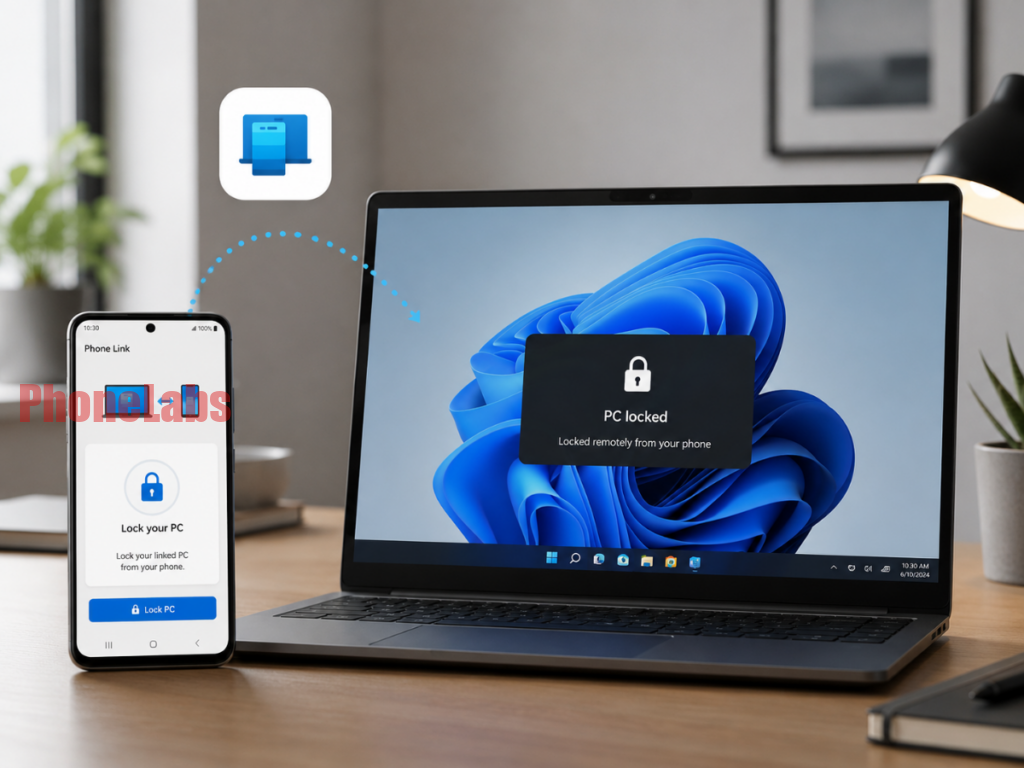

Microsoft has rolled out a significant security and convenience update for its Phone Link application, introducing a remote PC locking feature directly accessible from paired Android smartphones. This new functionality empowers users to lock their Windows computer with a single tap, even if they have stepped away from their desk, providing an immediate layer of security in various environments.
Currently exclusive to Android devices, this feature seamlessly integrates when both the smartphone and the Windows PC are running the latest versions of the Phone Link application. This update directly addresses a common oversight: users forgetting to lock their PC, especially when working in shared office spaces, co-working environments, or public areas, thereby mitigating potential security risks.
How Phone Link’s New Remote PC Lock Works
Activating the remote lock is straightforward. Upon opening the Phone Link app on your paired Android device, users will find a prominent “Lock PC” option. A quick tap on this button initiates the lock command, securing your Windows PC within a few seconds. Once the lock command is successfully sent, the Phone Link app on your phone will automatically disconnect from the PC. To re-establish the connection and access your computer, you will need to manually unlock the PC.
A key advantage of this new feature is its simplicity and lack of complex setup. As long as both your Windows PC and your Android phone are equipped with the most recent iterations of the Phone Link application, the “Lock PC” option will become automatically visible and functional, ready for immediate use without any additional configuration steps.
Users who wish to manage or disable this remote locking capability, perhaps to prevent accidental locks, can do so easily through their Windows PC settings. Navigate to “Settings,” then select “Bluetooth & devices,” followed by “Mobile devices.” From there, choose your paired Android phone from the list, and toggle the “Remote PC controls” option to either enable or disable the feature according to your preference.
While Windows has long offered “Dynamic Lock,” which automatically secures a PC when a paired Bluetooth phone moves out of range, Phone Link’s new option offers a distinct set of advantages. The Phone Link feature provides explicit, on-demand control; the PC locks only when the user consciously presses the button, removing any ambiguity about whether the lock has occurred. Furthermore, the “Lock PC” button is intelligently grayed out when the phone isn’t connected, offering clear visual feedback on its availability. Crucially, Phone Link operates over Wi-Fi, meaning Bluetooth doesn’t need to be constantly active, which can help conserve phone battery life. Dynamic Lock still holds value for its automatic, proximity-based locking and can be useful for users who don’t utilize Phone Link for other cross-device functionalities.
Availability and Key Benefits of Remote PC Lock
As of now, the remote lock feature is exclusively available for Android devices. Microsoft has not yet announced plans to extend this functionality to Phone Link for iPhone. This aligns with Apple’s stricter controls over system-level access for third-party applications, which historically has limited deeper integration with Windows. However, Microsoft‘s recent addition of Apple Messages support to Phone Link indicates continued efforts in iOS integration, though the Lock PC feature is not part of that initiative at present.
The Lock PC feature is currently rolling out progressively with the latest updates to the Phone Link app. Users are encouraged to ensure both the Windows Phone Link application (via the Microsoft Store) and the Phone Link companion app on their Android device (via the Google Play Store) are fully updated. Once both apps are on the required versions, the feature will appear automatically. For individuals working in shared or open-plan environments where quick device security is paramount, this new feature offers an invaluable, convenient, and reliable method to secure their Windows PC without needing to physically return to their workstation.
| Feature | Phone Link Remote Lock | Windows Dynamic Lock |
|---|---|---|
| Activation Method | Explicit tap on Android phone | Automatic (Bluetooth disconnect) |
| Connectivity Basis | Wi-Fi (Primary) | Bluetooth |
| User Feedback | Clear button state, on-demand | Proximity-based, less explicit |
| Control Level | On-demand, conscious action | Automatic, proximity-based |
| Platform Availability | Android (for phone interaction) | Windows (with any paired Bluetooth device) |
| Manual Disabling | Via Windows Settings | Via Windows Settings |