
Transferring data between Android devices has become significantly easier in 2026. Gone are the days of relying on cables, manual backups, or complicated setups. Today, wireless technologies powered by Wi-Fi Direct, cloud syncing, and AI-driven migration tools allow users to move everything—from apps and photos to system settings—within minutes.
Modern Android ecosystems now focus on seamless transitions, ensuring that switching to a new phone feels effortless. Whether you’re upgrading your device or setting up a secondary phone, wireless transfer methods provide speed, convenience, and security.
Using Google’s Native Backup and Restore
The most reliable and universal method for transferring data is through your Google account. This approach works across almost all Android devices and ensures your essential data is
Setting Up Your Google Cloud Backup
Before switching devices, make sure your old phone is backed up:
- Go to Settings > Google > Backup
- Enable backup for contacts, apps, photos, SMS, and device settings
- Ensure your device is connected to Wi-Fi and fully synced
This creates a secure cloud snapshot of your data, ready to be restored anytime.
Restoring Data on the New Device during Setup
When you power on your new Android device:
- Sign in using the same Google account
- Choose Restore from backup
- Select the latest backup file
Your apps, contacts, and settings will begin downloading automatically in the background.
Quick Share: The Fastest Peer-to-Peer Method
Quick Share is now the fastest wireless method for direct device-to-device transfers. It replaces Nearby Share and offers improved speed and stability using Wi-Fi Direct.
How to Enable and Configure Quick Share
- Open Settings > Connected Devices > Quick Share
- Turn on visibility and choose who can send files
- Enable Wi-Fi and Bluetooth for optimal performance
Once enabled, your device becomes discoverable for nearby transfers.
Transferring Large Media Files and Folders
Quick Share is ideal for:
- Photos and videos
- Documents and folders
- APK files
Simply select files, tap Share > Quick Share, and choose the target device. Transfers are fast and do not require internet access.
Brand-Specific Transfer Tools (Manufacturer Apps)
Many Android brands offer dedicated apps that provide deeper migration, including system settings and layouts.
Samsung Smart Switch
Best For: Galaxy users
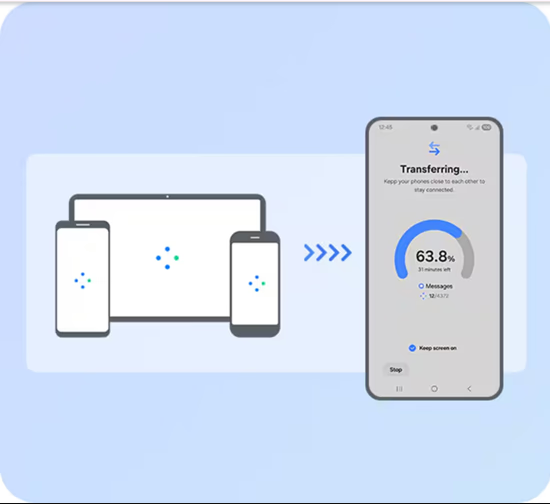
Smart Switch is one of the most advanced tools, allowing full device cloning, including apps, messages, call logs, and even home screen layouts.
Google Pixel Update: Seamless Transition to Pixel Devices
Pixel devices offer built-in migration tools during setup. With a wireless connection, users can transfer apps, SMS, and settings directly without additional apps.
Mi Mover and OnePlus Switch
Best For: Xiaomi and OnePlus users
These tools provide fast wireless transfers optimized for their ecosystems, ensuring compatibility and speed.
Wireless Transfer for Social Apps and Messaging
Some apps require separate transfer methods due to encryption and privacy restrictions.
Moving WhatsApp Chats Without Google Drive
WhatsApp now supports local wireless transfer:
- Open WhatsApp on both devices
- Use Chat Transfer feature
- Scan QR code to start migration
This avoids cloud backups and speeds up the process.
Transferring Telegram and Signal Local Data
Apps like Telegram sync automatically via cloud, while Signal requires manual transfer using QR-based device linking.
Third-Party Wireless Solutions for Power Users
Advanced users may prefer third-party tools for more flexibility and control.
Send Anywhere
Best For: Fast transfers using secure keys
Send Anywhere allows file transfers using a 6-digit code, ensuring secure and direct connections without accounts.
AirDroid
Best For: Browser-based file management
AirDroid enables wireless transfers via a web interface, making it easy to manage files between devices and PCs.
Troubleshooting Common Wireless Transfer Failures
Fixing Wi-Fi Direct and Bluetooth Conflicts
- Ensure both devices are on the same Wi-Fi network
- Restart Wi-Fi and Bluetooth
- Disable battery saver modes
These steps resolve most connection issues.
Optimizing Battery and Power Settings for Large Transfers
- Keep devices charged above 50%
- Disable background app restrictions
- Avoid screen timeout during transfer
This ensures stable and uninterrupted data migration.
Conclusion: Choosing the Best Method for Your Needs
The best wireless transfer method depends on your situation:
- For full backups: Google Backup is the safest
- For speed: Quick Share is the fastest
- For brand users: Smart Switch or Mi Mover are
- For advanced control: Third-party tools like Send Anywhere
In 2026, wireless data transfer is faster, smarter, and more reliable than ever. By choosing the right method, you can move your entire digital life to a new Android device effortlessly—without cables or complications.