
In 2026, Google has redefined the voice assistant experience by replacing traditional assistants with AI-powered systems. Google Gemini is now at the center of this تحول, offering smarter, more conversational, and context-aware voice interactions.
Unlike older assistants, Gemini doesn’t just execute commands—it understands intent, processes complex requests, and can even handle multi-step tasks. Whether you’re managing your schedule, writing messages, or controlling smart devices, Gemini acts as a true AI companion.
Prerequisites: What You Need Before Starting
Supported Devices: Android, iOS, and Smart Displays
Gemini is available across:

- Android smartphones (latest versions recommended)
- iPhones via the Google app
- Select smart displays and tablets
For the best experience, ensure your device supports the latest AI features.
Software Requirements: Google App Updates and Regional Availability
Before activating Gemini:
- Update the Google app to the latest version
- Ensure Gemini is available in your region
- Sign in with your Google account
Some features, especially voice capabilities, may roll out تدريجياً depending on location.
How to Enable Gemini Voice Commands on Android
Setting Gemini as Your Primary Assistant: Replacing Google Assistant
To activate Gemini as your default assistant:
- Open Settings > Apps > Default Apps
- Select Digital Assistant App
- Choose Gemini instead of the legacy assistant
This ensures all voice triggers are handled by Gemini.
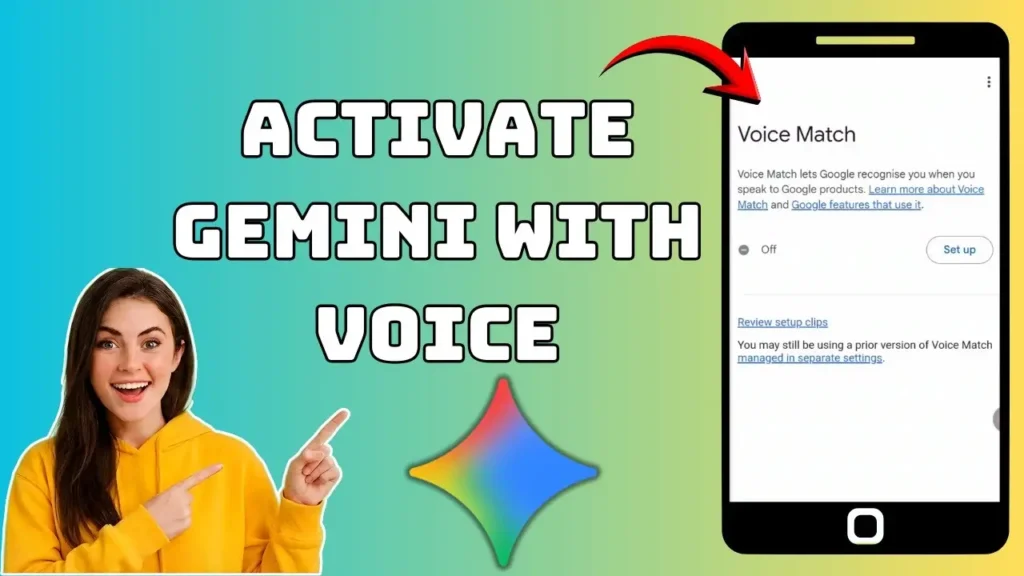
The “Hey Google” Setup: Training Your Voice Model for Gemini
- Open the Google app
- Go to Settings > Voice > Voice Match
- Enable “Hey Google” detection
- Train your voice model
This allows Gemini to recognize your voice instantly and respond hands-free.
Activating Gemini from the Power Button or Corner Swipe
You can launch Gemini using:
- Long press on the power button
- Swipe from the bottom corner of the screen
These shortcuts provide quick access without needing voice commands.
Using Gemini with Voice on iPhone and iOS
Accessing Gemini via the Google App
On iOS, Gemini works through the Google app:
- Open the app
- Tap the microphone icon
- Start speaking your command
Can You Replace Siri? Using Shortcuts for Faster Voice Access
While Siri cannot be fully replaced, you can:
- Create a Shortcut that opens Gemini
- Assign a custom voice phrase
This creates a شبه بديل for quick voice access.
Master the Best Gemini Voice Commands in 2026
Productivity
- “Hey Google, summarize my unread emails”
- “Create a to-do list for today”
Creative Tasks
- “Help me write a message to my manager”
- “Generate ideas for a presentation”
Daily Routines
- “Turn off the lights”
- “What’s my schedule today?”
Gemini excels at combining tasks into a single, natural conversation.
Using Gemini Live: The Hands-Free Conversational Mode
One of the biggest innovations in 2026 is Gemini Live, a feature that transforms voice interaction into a continuous, real-time conversation.
With Gemini Live:
- You don’t need to repeat “Hey Google” every time
- Conversations feel natural and uninterrupted
- Gemini remembers context between questions
For example, you can say:
- “Plan a trip to Dubai”
- Then follow up with: “What’s the best time to visit?”
- And continue with: “Book me a budget-friendly hotel”
All without restarting the command.
Gemini Live is especially useful for:
- Studying and asking follow-up questions
- Cooking with step-by-step voice guidance
- Brainstorming ideas hands-free
This feature represents a major leap toward true conversational AI, making interactions faster and more human-like than ever before.
Privacy and Security: Managing Your Voice Data
How to Delete Your Gemini Voice Activity History
- Go to your Google Account
- Open Activity Controls
- Delete voice recordings anytime
Controlling “Lock Screen” Access for Voice Commands
You can:
- Disable voice access on the lock screen
- Restrict sensitive commands
This helps protect your personal data.
Troubleshooting: Gemini Not Responding to Your Voice?
Fixing Microphone and Permission Issues
- Ensure microphone access is enabled
- Restart your device
- Update the Google app
Language and Dialect Support Check
Gemini may not support all languages or accents equally.
Make sure your selected language is supported for voice commands.
Activating Gemini by voice unlocks a new level of convenience and productivity. With features like Gemini Live, users can interact with AI in a more natural and seamless way than ever before.
As AI continues to evolve, voice assistants are becoming less like tools and more like intelligent partners—capable of understanding, assisting, and adapting to your daily life.
FAQ
Does Gemini replace Google Assistant entirely?
Yes, in most modern devices, Gemini is replacing Google Assistant as the default AI-powered voice assistant.
Can I use Gemini hands-free?
Yes, with Voice Match and Gemini Live, you can use it completely hands-free.
Is Gemini available on iPhone?
Yes, but only through the Google app—it cannot fully replace Siri.
Why is Gemini not responding to my voice?
Check your microphone permissions, app updates, and language settings.