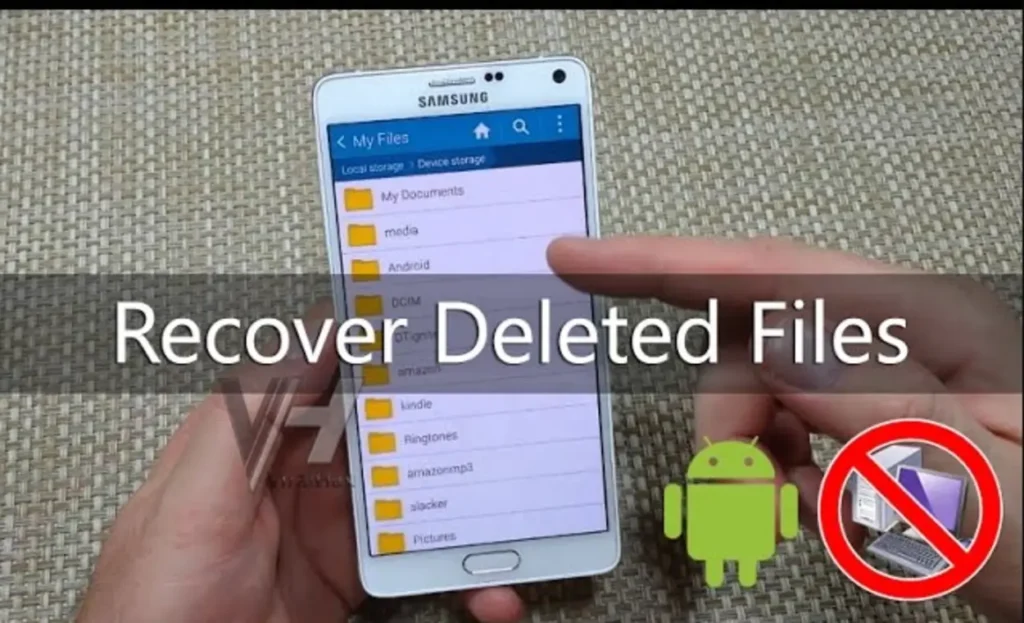

Losing important files on your Android phone can be frustrating, especially when those files include personal photos, videos, work documents, or important downloads. Whether the deletion happened accidentally, after a software update, or due to a system error, many users immediately assume their data is gone forever.
Fortunately, that is not always the case. Android devices offer several ways to recover deleted files, and in many situations, your lost data can be restored successfully if you act quickly. In this guide, you’ll learn how Android file recovery works, the most effective recovery methods, and practical tips to prevent future data loss.
Can Deleted Android Files Be Recovered?
In many cases, yes. When a file is deleted on Android, it is often removed from the visible file system but may remain in storage until new data replaces it. This means there is a window of opportunity during which recovery may still be possible.

The chances of successful recovery depend on several factors, including:
- How recently the file was deleted
- Whether the storage space has been overwritten
- If cloud backups were enabled
- The type of storage where the file was saved
- The security features used by the device
The sooner you attempt recovery, the better your chances of getting your files back.
Common Reasons Files Disappear on Android
Understanding what caused the data loss can help determine the best recovery method.
Accidental Deletion
Many users unintentionally delete files while cleaning up storage or organizing folders.
System Updates and Software Errors
A failed update or software malfunction can sometimes cause files to disappear unexpectedly.
Malware and Security Threats
Certain malicious applications can delete, hide, or corrupt files stored on your device.
Storage Corruption
Internal storage or memory card issues may make files inaccessible even though they still exist.
Factory Reset
Performing a factory reset without a backup can erase all personal data stored on the phone.
Method 1: Check the Android Trash or Recycle Bin
Many Android applications now include a Trash or Recycle Bin feature that temporarily stores deleted files before permanent removal.
Recover Photos and Videos
Open your gallery application or Google Photos and check the Trash folder. Recently deleted photos and videos are usually stored there for a limited period before being permanently removed.
Recover Documents and Downloads
File manager apps often include a Recycle Bin where deleted documents, PDFs, and downloads may still be available.

If you find the missing file, simply select it and choose the Restore option.
Method 2: Restore Files from Cloud Backups
Cloud storage services are one of the easiest ways to recover deleted data.
Google Drive
If your files were previously uploaded or synchronized with Google Drive, sign in to your account and check for available backups.
Google Photos
Users who enabled automatic photo backup can often recover deleted images directly from their Google Photos library.
OneDrive and Dropbox
Many Android users use cloud services such as OneDrive or Dropbox to automatically sync photos, videos, and documents. If backup was enabled, restoring files usually takes only a few minutes.
Method 3: Recover Files from WhatsApp Backups
Photos, videos, and documents shared through WhatsApp may still exist within backups.
If the missing files were received through WhatsApp:
- Open WhatsApp settings.
- Navigate to Chat Backup.
- Verify that a recent backup exists.
- Reinstall WhatsApp if necessary and restore the backup during setup.
This method can recover both chat history and media files.
Method 4: Recover Files from an SD Card
If your deleted files were stored on a microSD card, recovery may be easier than recovering data from internal storage.
To maximize recovery chances:
- Stop using the SD card immediately.
- Remove it from the phone.
- Connect it to a computer using a card reader.
- Use professional recovery software to scan the card.
Because deleted data may still physically exist on the card, recovery success rates are often higher than with internal storage.
Method 5: Use Android Data Recovery Software
When backups are unavailable and the files are no longer in the Trash folder, specialized recovery tools may help.
Android recovery software can scan storage for traces of deleted files and attempt to reconstruct them.
Popular recovery solutions generally support:
- Photos
- Videos
- Documents
- Audio files
- Contacts
- Messages
However, results vary depending on device security, encryption, and how much time has passed since deletion.
Why Android File Recovery Sometimes Fails
Not every deleted file can be recovered successfully. Modern Android devices use advanced security technologies that can make recovery more difficult.
Some common reasons include:
Data Overwriting
Once new files are saved, they may overwrite the space previously occupied by deleted data.
Storage Encryption
Modern Android devices encrypt stored data, which can prevent recovery tools from accessing deleted files.
Expired Trash Retention Period
Files stored in a Trash folder are often automatically removed after a set period.
Missing Backups
Without local or cloud backups, recovery options become significantly more limited.
How to Protect Your Files from Future Data Loss
While recovery is possible in many situations, prevention remains the safest strategy.
Enable Automatic Cloud Backup
Turn on automatic backups for:
- Photos
- Videos
- Contacts
- Messages
- Important documents
Keep Multiple Copies
Store important files in more than one location, such as cloud storage and an external hard drive.
Update Your Device Regularly
Security and system updates can reduce the risk of corruption and software-related data loss.
Avoid Installing Unknown Apps
Only download applications from trusted sources to minimize malware risks.
Create Monthly Backups
A simple monthly backup routine can save hours of frustration later.
Frequently Asked Questions
Can permanently deleted files be recovered on Android?
In some cases, yes. Recovery may still be possible if the storage space has not been overwritten and suitable recovery methods are used.
How long do deleted files stay in the Trash?
The retention period varies by app, but many Android apps keep deleted files for 30 to 60 days before permanent removal.
Can I recover deleted files without a backup?
Yes, but success rates are lower. Recovery software may help if the deleted data has not yet been overwritten.
Is file recovery possible after a factory reset?
Recovery becomes much more difficult after a factory reset, especially on newer Android devices that use encryption.
Accidentally deleting files from an Android device doesn’t always mean they are gone forever. From checking the Trash folder and restoring cloud backups to using professional recovery tools, there are multiple ways to retrieve lost data. Acting quickly is the most important factor in successful recovery.
To avoid future problems, make regular backups part of your routine and ensure your most important files are stored in multiple locations. A few minutes spent backing up your data today can prevent major headaches tomorrow.