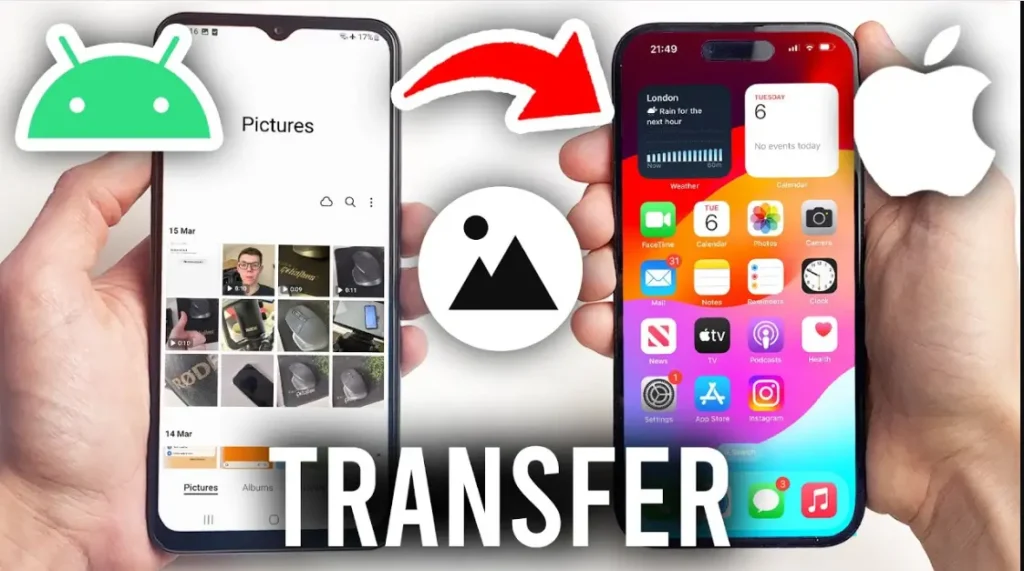

Getting a new iPhone is exciting, but figuring out how to transfer data from Android to iPhone can feel overwhelming if you’ve never switched ecosystems before. The good news is that Apple has made the process much easier over the past few years. Whether you want to move your contacts, photos, messages, apps, or files, there are several reliable methods that work in 2026. This guide walks you through every option, explains what transfers successfully, and helps you avoid common mistakes along the way.
Why Switching from Android to iPhone Is Easier Than Ever
A few years ago, moving from Android to iPhone often meant manually copying files and starting over with your apps. Today, Apple and Google both provide tools that make the transition surprisingly smooth.
Apple’s Move to iOS app automatically transfers many of your most important files during iPhone setup, while Google services sync contacts, calendars, and photos across both platforms.
Modern smartphones also support faster Wi-Fi standards and USB-C connections, making transfers significantly quicker than they were just a few years ago.
Before you begin, make sure you have:
- Both phones charged to at least 50%
- A stable Wi-Fi connection
- Enough storage available on your new iPhone
- Your Google account credentials
- Several minutes to an hour, depending on the amount of data
If you’re transferring hundreds of gigabytes of photos and videos, expect the process to take longer.
Practical Tip: Update both devices to the latest available software before starting to reduce compatibility issues.
Method 1: How to Transfer Data from Android to iPhone Using Apple’s Move to iOS App
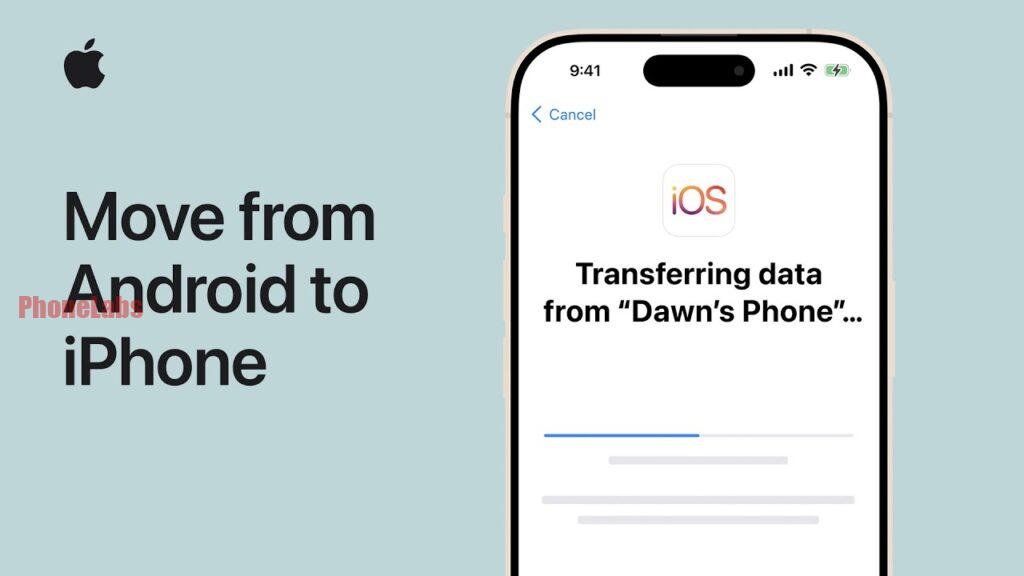
Apple’s Move to iOS app is the easiest and most reliable way to move your data. It’s free on the Google Play Store and is specifically designed for Android users switching to iPhone.
What It Transfers
Move to iOS can transfer:
- Contacts
- SMS messages
- Message history
- Photos
- Videos
- Camera albums
- Calendars
- Web bookmarks
- Accessibility settings
- Some free apps available on both Android and iOS
How to Use Move to iOS
- Turn on your new iPhone.
- Begin the setup process.
- On the Apps & Data screen, choose Move Data from Android.
- Install Move to iOS on your Android phone.
- Open the app and tap Continue.
- Enter the verification code shown on the iPhone.
- Connect both devices.
- Choose the content you want to transfer.
- Wait until the process finishes.
- Complete iPhone setup.
Avoid using either phone during the transfer, as interruptions may cause the process to fail.
Pros
- Official Apple solution
- Free
- Secure encrypted transfer
- Easy for beginners
Cons
- Only works during initial iPhone setup
- Some app data doesn’t transfer
Practical Tip: If you’ve already finished setting up your iPhone, you’ll need to erase it and start over to use Move to iOS.
Method 2: How to Transfer Data from Android to iPhone via Google Account
If you’ve already set up your iPhone or only need to move personal information, syncing through your Google account is a great alternative.
What Syncs Automatically
After signing into the same Google account on your iPhone, you can sync:
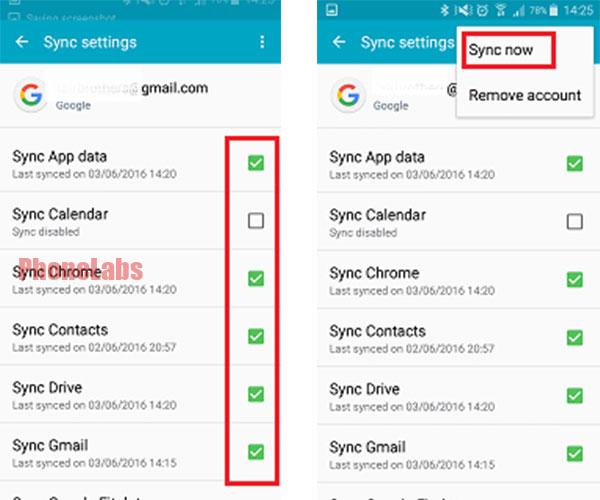
- Contacts
- Gmail
- Google Calendar
- Google Drive files
- Google Photos
- Notes stored in Google Keep
Steps
- On Android, open Settings > Accounts.
- Verify Google sync is enabled.
- On iPhone, open Settings > Mail > Accounts.
- Add your Google account.
- Enable Contacts, Calendars, Mail, and Notes.
- Install Google Photos if you use it.
- Allow everything to sync.
Large photo libraries may require several hours before appearing on the iPhone.
Best For
- Existing Google users
- Already configured iPhones
- Cloud-based backups
Practical Tip: Leave your iPhone connected to Wi-Fi overnight if you’re syncing a large Google Photos library.
Method 3: Manually Move Files Using a Computer
Sometimes you only need certain files, such as documents, music, or videos. A computer gives you full control over what gets transferred.
What You’ll Need
- Windows PC or Mac
- USB cable
- Android phone
- iPhone
- Apple Devices app (Windows) or Finder (Mac)
Steps
- Connect your Android phone.
- Copy photos, videos, music, and documents to your computer.
- Disconnect Android.
- Connect your iPhone.
- Use Finder (Mac) or the Apple Devices app (Windows) to transfer supported files.
- Alternatively, upload files to iCloud Drive or Google Drive and download them on your iPhone.
Advantages
- Full control
- No internet required for local transfers
- Works even after iPhone setup
Limitations
- Doesn’t transfer messages or app data
- Takes more time than automated methods
Practical Tip: Organize your files into folders before copying them to make finding everything on your iPhone much easier.
What Data Can (and Can’t) Be Transferred
Not every type of data moves perfectly between Android and iPhone. Here’s a quick comparison.
| Data Type | Move to iOS | Google Account | Computer |
|---|---|---|---|
| Contacts | Yes | Yes | No |
| Calendar | Yes | Yes | No |
| Photos | Yes | Yes (Google Photos) | Yes |
| Videos | Yes | Yes | Yes |
| SMS Messages | Yes | No | No |
| WhatsApp Chats | Supported through WhatsApp’s built-in Android-to-iPhone transfer | No | No |
| Music Files | Limited | No | Yes |
| Documents | Limited | Google Drive | Yes |
| Apps | Downloads matching iOS versions when available | No | No |
| App Data | Limited | No | No |
Some Android apps simply don’t exist on iPhone, while others require you to sign in again after installation.
Streaming apps like Spotify, Netflix, and YouTube don’t transfer downloaded content, but your account information remains available once you log in.
Practical Tip: Make a list of important apps before switching so you can quickly reinstall anything that doesn’t transfer automatically.
Common Problems and How to Fix Them
Even with modern transfer tools, occasional issues can occur.
Move to iOS Gets Stuck
Possible fixes:
- Restart both devices.
- Disable mobile data on Android.
- Connect to a stable Wi-Fi network.
- Keep both phones plugged into power.
iPhone Says Not Enough Storage
Delete unnecessary files from the Android phone before transferring or choose only essential content.
Photos Missing
Open Google Photos and wait for cloud syncing to finish.
Check whether all albums were selected during transfer.
Contacts Didn’t Transfer
Verify Google Contacts sync is enabled.
Refresh your Google account on the iPhone.
Apps Didn’t Move
Some Android apps have no iPhone equivalent.
Download available replacements from the App Store.
Practical Tip: If a transfer repeatedly fails, restart both devices and begin again instead of trying to resume a partially completed transfer.
FAQ: Android to iPhone Transfer
1. What’s the easiest way to transfer data from Android to iPhone?
Apple’s Move to iOS app is the easiest method because it automatically transfers contacts, messages, photos, videos, calendars, and other supported content during iPhone setup.
Practical Tip: Use Move to iOS before completing your new iPhone’s initial setup for the smoothest experience.
2. Can I transfer WhatsApp chats from Android to iPhone?
Yes. WhatsApp now supports official chat transfers from Android to iPhone using the Move to iOS process, allowing you to move your chat history and media without third-party tools.
Practical Tip: Update WhatsApp on both devices before starting the transfer.
3. Will my apps transfer automatically?
Move to iOS identifies free apps that are available on both Android and iPhone and suggests downloading their iOS versions. However, app data may not transfer unless the app syncs through an online account.
Practical Tip: Sign in to your favorite apps after switching to restore cloud-synced settings and content.
4. How long does the transfer take?
Most transfers finish within 20 to 60 minutes. If you’re moving hundreds of gigabytes of photos and videos, it may take several hours.
Practical Tip: Start large transfers when you won’t need either phone for a while, such as in the evening.
5. Can I transfer data after setting up my iPhone?
Yes, but your options are more limited. You can sync data through your Google account, use cloud storage services, or manually transfer files with a computer. Move to iOS only works during the initial setup process unless you erase the iPhone and start over.
Practical Tip: Decide which transfer method you’ll use before configuring your new iPhone to avoid unnecessary resets.
Switching from Android to iPhone doesn’t have to be stressful. Whether you choose Apple’s Move to iOS app, sync through your Google account, or manually transfer files with a computer, there’s a solution for every situation. For most people, Move to iOS remains the fastest and most complete option, while Google services and manual transfers provide excellent alternatives for devices that have already been set up. With a little preparation, you can move your important data and start enjoying your new iPhone without leaving anything valuable behind.